Showing posts with label SPEED. Show all posts

Monday, December 10, 2012

3 CARA LAJUKAN INTERNET ANDA


Kadangkala kita merasa tertekan dengan kelajuan internet yang cukup hampeh.. punyalah slow nak mampuih. Disini saya ingin kongsikan dengan anda bagaimana nak melajukan internet anda. Saya sudah mencuba dan sudah melihat hasilnya. Ia mengoptimumkan sistem pc anda dan membolehkan kelajuan internet anda diubah kepada yang lebih pantas...
Jom Kita Cuba dan Lihat Hasilnya...................
1. TCP Optimizer
TCP Optimizer merupakan perisian yang tidak perlu anda install tetapi boleh melajukan Internet dengan mengubah settings-setting yang ada di dalam komputer anda. Anda boleh memilih kelajuan hubungan anda ke Internet. Sebagai contoh anda tahu Internet anda lajunya ialah 5mbps (megabit setiap saat), jadi anda boleh tekan slider yang ada di dalam perisian itu, kemudiannya apply settings. Anda mungkin kena restart komputer atau sambungan ke Internet anda.
Program ini direka khas unuk meningkatkan kelajuan sambungan internet anda, tetapi ia juga sesuai untuk mereka yang tidak berpengalaman. Dengan kata lain, TCP Optimizer yang dicipta oleh SpeedGuide ini merupakan software yang boleh melajukan Internet dan broadband.
Jika anda newbie, anda akan sukakan perisian ini. Ia amat-amat mudah digunakan.
2. Cari Dan Guna DNS Terlaju

Setiap milisaat adalah penting apabila anda melayari Internet. Jika anda ingin menambah kelajuan Internet anda, anda boleh menukar pelayan DNS anda untuk membuat halaman tersebut memuatkan sedikit lebih cepat. Berikut adalah pengenalan ringkas tentang DNS dan bagaimana ia mempengaruhi kelajuan sambungan anda, dan bagaimana anda boleh dengan mudah menukar tetapan komputer anda untuk menggunakan DNS sepantas mungkin.
Apakah DNS dan Bagaimana Ia Mempengaruhi Kelajuan Internet Saya?
Komputer menggunakan alamat IP untuk menyambung antara satu sama lain. Alamat IP adalah satu siri nombor yang bertindak sebagai alamat digital yang membolehkan komputer untuk menghantar maklumat secara berulang-alik antara komputer anda dengan Internet. Apabila anda melihat IP, anda dapat melihat rentetan panjang nombor yang mudah untuk komputer ingati, tetapi ia bukan dibuat untuk manusia (jadi, sukar untuk kita mengingatinya. Jadi, untuk memudahkan manusia, sistem DNS dicipta.)
Apabila anda menaip alamat web dalam pelayar Internet anda, laluan komputer anda akan melalui sesuatu yang dipanggil Sistem Nama Domain (DNS). Sebagai contoh, alamat web http://kokotiam.com/ adalah mesra pengguna, tetapi untuk komputer, ia bermaksud seperti 103.246.204.115. Pada asasnya, DNS adalah apa yang membolehkan anda menggunakan mudah diingati tapak seperti URL “kokotiam.com” berbanding menghafal sekumpulan alamat IP.
Tiap-tiap pembekal perkhidmatan internet (internet service provider, atau ISP) biasanya mempunyai pelayan DNS mereka sendiri, tetapi ia tidak semestinya yang paling pantas. Selalunya, pelayan DNS yang paling cepat adalah yang paling dekat dengan lokasi anda. Jika anda bertukar kepada yang lebih cepat, yang bermakna ia akan “berjumpa” alamat IP tersebut dengan lebih cepat berbanding yang asalnya.
Pelayan DNS pihak ketiga juga boleh mempunyai faedah lain, seperti penapisan kandungan. Antara DNS daripada pihak ketiga ialah OpenDNS, Google Public DNS, dan lain-lain lagi.
Beberapa perkara yang perlu anda ingat: tidak semuanya indah. Anda perlu ingat bahawa pembekal DNS anda boleh melihat setiap laman web yang anda lawati, jadi jika anda bimbankang tentang keselamatan, anda mungkin ingin melakukan sedikit penyelidikan tentang penyedia servis DNS terlebih dahulu. Di samping itu, sesetengah sekolah, perniagaan, dan tempat-tempat lain hanya membenarkan anda menggunakan pelayan DNS mereka, yang bermaksud jika anda menukar pelayan pada komputer riba anda dan kemudian mengambil bekerja, anda mungkin mempunyai isu-isu sambungan Internet. Cuba tengok jika anda boleh mengubah settings anda ataupun tidak.
Bagaimana untuk mencari DNS yang paling laju? Gunakan Namebench ataupun DNS Jumper.
3. Gunakan Browser Yang Lebih Laju
Setiap browser dilahirkan berbeza. Ada browser yang lebih laju berbanding yang lain. Sebagai contoh, di dalam browser test yang dijalankan oleh Toms Hardware, kita dapati bahawa pelayar Internet paling baru dan paling laju ialah Google Chrome. Tetapi, jika anda memerlukan addons yang ada di dalam Firefox, anda juga boleh download dan installnya sebagai browser kedua anda.
Sekiranya ia masih tidak mencukupi untuk anda... langganlah pakej yang tidak mempunyai kouta ( bandwitch limited) sepertimana yang diperkenalkan oleh TM Malaysia... So Good Luck.....

Thursday, November 3, 2011

TIPS- Lajukan Internet

Cara lajukan internet ini hanya dijurus kepada pengguna Microsoft Windows 98/ME/2K/XP/NT.
Kepada pengguna Linux/BeOs/RedHat/Lindows atau yang lain daripada Windows, sila minta bantuan daripada yang pakar didalam operating system tersebut. Berikut adalah beberapa cara untuk melajukan internet anda..


1. Defaultkan wallpaper anda,biarkan kosong.Bagi Windows 98/ME/2K/ , default wallpaper ialah warna biru muda. Bagi Windows XP tidak dapat ditukar kerana wallpaper defaultnya ialah gambar Bliss. Jika gunakan wallpaper,terutamanya yang berwarna-warni ia akan membuatkan PC anda lagging semasa di IRC atau semasa melayari laman web.

2. Klik Start/Run dan taip msconfig.Klik pada bahagian Startup dan uncheck software yang anda fikir anda tidak mahu keluar pada masa anda start komputer anda..Semakin kurang yang keluar pada startup anda semakin lajulah proses permulaan komputer anda dan melajukan loading site didalam internet dan juga di IRC!

3. Kurangkan atau jangan run software yang terlalu berat seperti Microsoft Word semasa melayari internet, kalau anda ingin full acceleration semasa melayari internet jangan buka software yang lain seperti satu lagi window bagi internet explorer, ini akan melambatkan internet anda. Sama juga bagi pengguna yang gemarkan IRC yang ingin dapatkan fastest ping access buka satu IRC client sahaja jangan lebih daripada satu kerana ia akan melaggingkan PC anda.

4. Clearkan segala benda yang terdapat didalam Recycle Bin anda sebelum menyambungkan connection anda ke internet. Tidak lupa juga History anda dan Records. Klik Start/Settings/Taskbar and Start Menu/Advanced dan klik Clear.

5. Apabila anda connected daripada internet lebih daripada dua jam,restart computer anda dan reconnect kembalik jika anda terus melayari internet connection anda ke server akan mula drop dan anda akan mula terasa data/connection anda mula menjadi perlahan..

6. Jika anda menggunakan dialup dan menggunakan modem internal/external jangan lupa untuk update driver anda setiap 2 bulan untuk memastikan segala information hardware anda diupdate kerana selalunya driver yang anda dapat daripada CD adalah tidak updated atau yang menggunakan versi lama, justeru itu anda haruslah mendapat update file yang updated daripada site manufacturer modem tersebut.

7. Pada pengguna Internet Explorer, klik ikon Internet Explorer di Desktop dan klik Properties,Klik di bahagian Advanced dan scroll down ke bahagian Multimedia, untick bahagian yang tertulis Play animations,Play sounds,Play videos,Show pictures,Smart image dithering. Selepas ini anda tidak perlulah terkejut apabila anda melayari apa-apa site jika mendapati site itu tidak memaparkan sebarang gambar/flash/videos kerana yang ada hanyalah perkataan kerana anda telah set untuk tidak download sebarang gambar jadi ia akan melajukan internet anda semasa loading site.

8. Kemudian Klik Start/Settings/Control Panel/Network ,di bahagian Configuration klik 2X di Dial-Up Adapter dan klik pula Advanced.Klik IP Packet Size dan dibahagian Value pilih Large dan dibahagian seterusnya Record a log file pilih No..Klik Ok dan Ok sekali lagi dan restart komputer anda..

9. Pastikan komputer anda sentiasa berada didalam keadaan yang baik dan best setiap masa,connection akan drop jika komputer anda bermasalah seperti dijangkiti virus..

10. Kurangkan install game didalam PC anda jika mempunyai hard disk yang besar, sama juga kepada yang mempunyai hard disk yang besar…biarkan ruang yang lebih untuk swap file semasa anda surfing kerana file yang banyak didalam hard disk anda akan buat komputer lebih kerap hang/jam/lekat/kejung etc.

11. Gunakan Windows 2000 kalau anda inginkan kepantasan internet yang terlaju yang mampu dirempuh oleh sebiji dial-up modem didalam sebuah PC.Tidak kira Windows 2000 versi mana sama ada Server/Professional/Advanced Server ia adalah versi Windows yang menawarkan internet yang terpantas sekali yang pernah saya cuba dan mengalahkan Windows XP ~!

12. Line yang laju dan tidak drop adalah yang tidak lebih daripada 2km.Kalau lebih daripada 2km,data yang lalu daripada line anda mungkin akan drop jadi akan lebih mudah disconnect atau lagging ( lembab ).
Jadi kalau yang memang tinggal jauh daripada pencawang atau server telekom di Malaysia dari 2km jadi memang lembab jawabnya, kalau buat semua tips dekat atas itu line anda mungkin hanya akan meningkat dalam 2X ganda daripada yang lama berbanding line yang memang berdekatan dengan pencawang telekom iaitu dalam 6-7X ganda daripada line yang lama..Insya Allah !

TIPS - Lajukan Streamyx Anda


Jikalau anda menggunakan streamyx dan terasa slow untuk masuk wangcyber atau website2 lain. Ini ada tips untuk lajukan connection internet anda.

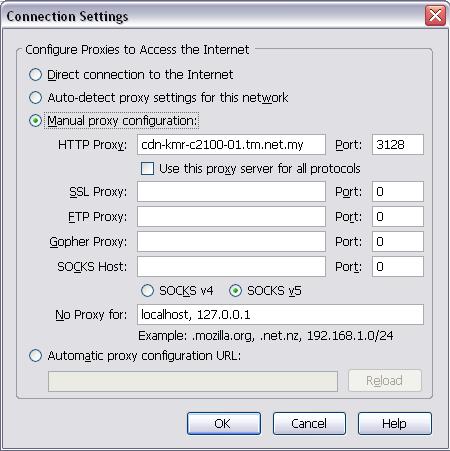
Caranya, gunakan proxy .
cdn-kmr-c2100-01.tm.net.my:3128 (expired)

bkj-stream2.jaring.my:3128

Untuk yg menggunakan firefox .
Tools -> Options->Advance->Network->Settings


Cubalah.. memang laju giler..

Credits to http://www.iprobot.net/internet/fix-...g-tmnet-proxy/

Wednesday, October 26, 2011

STREAMYX - MENGAPA KAU SUKA BUAT AKU MARAH ?

SEMAKIN HARI SEMAKIN TERUK SERVICES - TM STREAMYX

Perbualan telefon dengan Customer Care

Wahai TM ( Streamyx )...

Semenjak dua tiga menjak nie, aku rasa ada banyak perubahan berlaku pada STREAMYX aku, dulu capaian internet aku sungguh baik dari apa yang aku inginkan. Aku adalah pengguna 1Mb. Capaian Internet aku pada kelajuan Upload lebih daripada 450mbps dan kelajuan download aku lebih daripada 1.80mbps. Ia amat memukau aku untuk membuat kerja serta melihat movie dengan tanpa sekatan. Ini Buktinya :-
Bukti Speed Yang Aku Uji Pada 01/08/2010
Yang nie Link Yang pernah aku buat untuk memuji Kelajuan Internet Ciptaan STREAMYX (TM) - CLICK HERE.

Tapi kini aku rasakan ia amat buruk... ternyata amat buruk sekali. Kelajuan internet aku semakin hari semakin teruk. Apabila aku check speed ia turun mendadak. Kadangkala Upload dibawah 300mbps dan download 1.5mbps. Adakah Patut jadik macam tu ??? Nie Bukti Aku Tunjuk Kat Korang
Bukti Speed yang Aku Uji Pada 29/10/2010
Malah ia kadangkala membuatkan aku rasa macam nak terminated je akaun streamyx nie dan bertukar kepada apa yang dapat memuaskan hati aku, tapi aku masih lagi mempunyai kesetiaan tahap Gaban terhadap TM ( Streamyx ). Jadi kepada mereka yang mempunyai kuasa atau kuasa ditangan mereka. Cepat2lah bertindak sebelum pelanggan anda beralih ke servis lain. Aku masih lagi ingin melihat orang kuat TM berusaha menangani masalah ini. Kerana hati aku masih terpaut dengan STREAMYX... Jom Streamyx.. Jom Lajukan Internet Speed, supaya customer tak komplen... Sekian Terima Kasih


Salam 1 Malaysia... 
Putera30 PhotoGrapher And Designer: STREAMYX - MENGAPA KAU SUKA BUAT AKU MARAH ?: "Perbualan telefon dengan Customer Care Wahai TM ( Streamyx )... Semenjak dua tiga menjak nie, aku rasa ada banyak perubahan berlaku pada ..."

Sunday, April 17, 2011

Browser Terbaru - FIREFOX 4

Anda tentu tertarik dengan gaya terbaru yang menampakkan ciri-ciri yang sungguh berkesan dan ia amat laju dari browser terbaru yang telah dikemaskini dengan baik oleh FIREFOX. FIREFOX 4 kini dimantapkan dengan pelbagai applikasi yang akan menarik anda untuk mencubanya. Ia telah dikemaskini dengan ciri-ciri terbaru dan diperkemaskan dengan menarik dan cantik... tapi yang paling penting..kelajuan..


CLICK HERE FOR DOWNLOAD


Wednesday, January 19, 2011

THE SUPER FAST INTERNET - COMMING SOON


THE internet could soon be made obsolete. The scientists who pioneered it have now built a lightning-fast replacement capable of downloading entire feature films within seconds.  At speeds about 10,000 times faster than a typical broadband connection, “the grid” will be able to send the entire Rolling Stones back catalogue from Britain to Japan in less than two seconds.

The latest spin-off from Cern, the particle physics centre that created the web, the grid could also provide the kind of power needed to transmit holographic images; allow instant online gaming with hundreds of thousands of players; and offer high-definition video telephony for the price of a local call.

David Britton, professor of physics at Glasgow University and a leading figure in the grid project, believes grid technologies could “revolutionise” society. “With this kind of computing power, future generations will have the ability to collaborate and communicate in ways older people like me cannot even imagine,” he said.

Wednesday, December 15, 2010

ANTARA BROWSER YANG PALING POPULAR

Terdapat (5) lima browser (Pelayar) yang menjadi pilihan pengguna internet diseluruh dunia. Bagi tahun 2010 browser ini mendapat ranking yang tertinggi didalam senarai download serta mempunyai traffik tertinggi didalam rangkaian internet dunia. Adakah anda memiliki kesemua browser dibawah ini. Jika ya anda membuat pilihan yang amat bijak. Mereka sedang berusaha menaiktaraf untuk membuktikan bahawa mereka adalah pelayar internet terbaik didunia.

 
1. Firefox

Firefox kini menjadi yang nombor satu didunia berkat dukungan adds-on nya yang berkualiti serta tingkat keamanan yang terjamin juga kecepatan internet yang supeerrr…..
jadi memang pantas jika Firefox menyandang predikat “The Best 2010 Browser”

2. Google Chrome

Wah…,, google kembali merambah karirnya di dunia web browser. dengan kecepatan plus-plus yang diberikan browser ini, mungkinkah ia merangkak ke puncak juara browser 2011?

3. Internet Explorer

Internet Explorer buatan Microsoft turun peringkat ke peringkat 3 browser terfavorit. browser lainnya yang lebih mendukung kecepatan ber-internet membuatnya harus mengakui keunggulan firefox dan chrome.

4. Opera

jika didunia mobile phone, opera berhasil meraih predikat the best, namun di komputer, ia hanya mampu meraih peringkat ke-4. namun walau begitu, dalam beberapa bulan launching opera v10, opera berhasil mendapat 10,000,000 download. wow…, congratulation.

5. Safari

Browser safari mampu menduduki peringkat kelima terbaik untuk tahun ini. browser ini paling sering digunakan di sistem operasi machintos.

Monday, April 5, 2010

The Faster Internet In The World - Now Opened

internet terlaju dan terpantas didunia

A group of major telecom and technology companies has signed a landmark agreement to build and operate the Southeast Asia Japan Cable system or SJC, a new international submarine cable system with the highest capacity in the world. The new cable system will address broadband demand by providing much needed capacity and faster, more reliable connectivity to sustain the unprecedented growth in data, web applications and Internet traffic throughout Asia.
The SJC system, estimated to cost US$400 million and measure 8300 km, will initially link Singapore, Hong Kong, Indonesia, Philippines, and Japan. The 6-fiber-pair high capacity submarine cable system has a design capacity of 17 Terabits per second (Tbps) upgradeable to 23 Tbps, the highest capacity system ever built so far.
Initiating parties to this breakthrough project include Globe Telecom (Philippines), Google (USA),  KDDI (Japan), Network i2i, Reliance Globalcom (through FLAG Pacific Limited, Bermuda), and Telemedia Pacific Inc., Ltd. (Hong Kong/Indonesia).  Other initial parties have signified their intent to participate in the project once requisite approvals have been obtained.
Ernest Cu, President and CEO of Globe said, “Globe as a premier telecommunications company is known to be a pioneer and leader in service innovation in the Philippines. True to our mission, we are proud to partner with some of world’s eminent telcos in the region and the world.   This breakthrough project will link the Philippines to the Southeast Asia Japan Cable System and give our customers enhanced data connectivity going out of the Philippines to Hong Kong, Japan and Singapore, and onwards to the US.” 
Hady Hartanto, Chairman of Telemedia Pacific Inc., (TPI) said, "We are delighted to partner with some of the world's largest telco players in building this pan-Asia cable system.  By providing an exclusive link to Indonesia, Telemedia will not only enhance the geographical coverage of the cable system, we will also be able to address the fast growing bandwidth demand for broadband transmission between Indonesia and the key Asian gateways of Singapore, Hong Kong and Japan, and thereon to the rest of the world."
“With SJC complementing our existing Asia network, our customers will be able to address a population of over 66 million people and a GDP of $ 7500 Bn in addition to India and China markets," said Mr. Punit Garg President and CEO, Reliance Globalcom. "We will now be uniquely positioned to provide to our customers’ Voice, Internet and Data Services across the entire Asian continent connecting the top 10 key business markets in Asia Pac. In addition to improved network redundancy at multiple levels, our customers will now be able to expand their networks in the growing South East Asian markets of Indonesia, Singapore and the Philippines," he added.
The initiating parties signed the agreements in Manila on December 10, 2009. The SJC is targeted to be operational by the second quarter of 2012.

 
sumber
cuba bayangkan dengan speed calculation :
17 tbps = 2176 gigabyte/s
1 movie = 700mb
2176gb = 2 228 224mb
dengan bersamaan 2 228 224 bahagi 700 = 3183 movie

Sunday, March 28, 2010

8 Tips To Effectively Boost Your Wireless Router Signal

Look at it – staring you down so innocently, yet I know that your Linksys wireless router refuses to give you signal. Since you decided to place it in a corner to gather dust, using it only for its relay capabilities, it has decided to constantly bring up the feared “Limited Network Connection” bubble. Don’t you just hate those?
These routers have the power to transmit intangible signals; these signals, powerful as they may be, are prone to constant interference whether it be by physical objects, other signals floating around in the air, or even because you didn’t plug the wire in all the way.
Regardless of what the issue, there are some proven ways to try to remedy the situation of a weak Wifi signal. Some may simply be a little bit of common sense, other methods require purchasing additional parts.
Here are 8 tips on how to boost your wireless router signal.

Position it better

Unless you are living in a cave and you somehow miraculously have internet connectivity at the same time, you probably figured out that if your wireless router was in the corner of your kitchen under a pile of old newspapers and your computer was located on the second floor on the opposite side of the house — it is a great idea to place your router in an open position (preferably in the center of your house) where it isn’t obstructed by dense or metallic objects such as file cabinets or brick walls.
Other items that may interfere with your signal include (but are not limited to) microwave ovens, cordless phones, garage door openers, and even baby monitors. The bottom line is that the less objects in the signal’s way, the easier it is for it to relay information to your computer.

Change the WiFi Channel

Generally, Wifi routers transmit their signals on a radio frequency of 2.4 GHz. Many other household objects may operate on or around the same frequency, like cordless phones, for example. So, the channel becomes bogged down over time with lots of excess traffic that slows down your wireless connection. In the U.S.,  routers have a predefined set of 11 channels, and the default on a lot of them is channel 6. Changing the channel would reduce some interference. So how do you change the channel?
A great utility many people use is called NetStumbler, a wireless networking tool that just so happens to offer the option for you to change your wifi channel. Once opened, the program gives the choice of fooling around with all of your wireless utilities. Here is where you change your channel:
ns1
Which leads to:
netstumb2
Since the default for most people (at least in the United States) is 6, you may want to change your channel to something like say, channel 11. Take note that the changing of your wireless channel will NOT in any way increase your speed or bandwith. It will simply remedy your network connection if it keeps breaking off or getting lost.

Update firmware or drivers

Updates, whether related to the router firmware or your computer’s network adapter are done to fix bugs, smoothen out performance and reliability, and maybe even add new features. It is always a good idea to stay up to date with the latest releases by either of these parties.
Tim suggested using RadarSync to easily automatically update your computer’s drivers at once.

Buy your equipment from the same company

Compatibility can be a big problem, especially for two way transmissions. It may help to purchase your adapter and your router – everything, from the same company. Aside from that, some companies have embedded enhancements that improve speed or signal strength when everything is under the same brand.

Replace your antenna

Most routers come equipped with something called an omnidirectional antenna. This means that the antenna attached to the router broadcasts the signal equally within a certain circular radius. This is great if the router is positioned in the center of a hub where it needs to be able to reach ever corner of a room, but it can prove to be extremely wasteful if your router is in the corner (then again, why would it be there in the first place?). Since the signal is transmitted in a radius, if you place it in a corner, a lot of the transmitted signal is sent into the wall or outside into the open.
That is why you can manually detach your antenna and replace it with a high gain antenna. This focuses its energy to direct the signal in one general direction. Simple enough? You may have to check and see if your router has an external antenna jack/removable antenna.

Replace your wireless adapter

Since this is a two-way transmission, it may not have occured to you that it may not be the router that is the problem, but actually the wireless adapter attached to your computer. If your computer cannot send signals back to the router, the same problem ensues.
What is an adapter?  It used to be the card that you inserted into your computer or laptop. These days, most of the adapters are in the form of USB devices. Consider switching to a USB adapter that houses an external antenna, like this one depicted below.
externaladap
This is usually only applicable to desktop computers. If you purchased a laptop that has a built-in adapter, it probably isn’t your adapter because they are usually very high quality installations.

Add an additional Wireless Access Point (WAP) or Repeater

If all else fails, you may need to purchase a repeater or a secondary Wireless Access Point. The consensus among these two options is rather mixed. Constructing a secondary WAP requires the ability to feed an ethernet cable from your primary router to the new access point. There are also cost considerations to be aware of, as WAPs cost more than regular wireless routers. Even so, WAPs have certain flexibilities that normal routers do not have. They can be configured as gateways, bridges, clients or repeaters. But that’s another story. The bottom line is that the WAP is an extension of the original hub in order to extend the distance of the signal. The repeater works the same way.
Here is a tutorial on how to set up the WAP courtesy of Techskillsvideos:

Try weird things

Apparently aluminum foil amplifies reception and transmission. It may or may not work, YMMV.
A little bit of background: You may have seen 802.11b or 802.11g written somewhere on your router – these are merely wireless LAN standards that the particular router adheres to. The main difference between these is that 802.11b has a maximum data transfer rate of 11 Mbps, whereas 802.11g has a much higher 54 Mbps rate.
With that being said, there is no way to improve data transmission or bandwith outside of hardware applications and upgrades. The tips mentioned above are meant to help you solve the problem of an interfered or weak signal. These may or may not work for you, but there is a strong correlation between troubleshooting and success rate.
Have you any other tips to help strengthen a weak signal? Has changing channels made a big difference for you? Tried attaching aluminum foil to your router’s antenna? How did that turn out for you? Share your experiences in the comments!

Thursday, March 25, 2010

Streamyx Online Registration - Langgan Streanyx Secara Online

Streamyx

Streamyx is the brand name of the broadband services own and operates by TM (formerly known as Telekom Malaysia).
TM's high speed data carrying network crisscrossing the entire nation. Thus Streamyx can offer users a high speed broadband internet access regardless of their location within Malaysia.
Streamyx is a type of "wired" broadband, the data packages are transmit via hardwire from the point of user to the international gateway. Therefore, the users can expect a fairly uniform bandwidth allocation at all time and not adversely affected by the weather, location or altitude.

Online Registration

Signing up a broadband service has never been easier. Now, Streamyx can be registered online. The process is a breeze compare to the drudgery of conventional registration.
This website is in business 24 hours a day, 7 days a week all year round. Any time is a good time to subscribe to Streamyx and start enjoying a high speed internet connection.
Apart from the convenience of being able to sign up for Streamyx any time and any where you wish, there are free gifts, cash rebates and great discount on offer with every successful application.
That's not all, enjoy savings on top of savings with Streamyx-In-a-Box. Streamyx can be installed without technician support and save on the installation fee of RM88. Modem, together with accessories, installation CD and guide will be delivered to your doorstep absolutely free of charge, a further saving of up to RM25.
Click for

Wednesday, March 24, 2010

Boost Your Internet Speed – Free!


You can probably do two things, right now, to boost your Internet speed. They’re simple, they’re trusted, and they’re palpable changes:
  1. Open yourself to OpenDNS. They have configuration pages for your OS or hardware router. Both Scott Beale (LaughingSquid) and I have seen dramatic differences in speed since going through their DNSservers. Matt’s happy about it, too. My speed difference was probably even more dramatic, considering I’ve already implemented my second recommendation…
  2. If you’re on Windows, install FastCache: “Every time you go to a new website, or a website you haven’t been to in a day or so, your computer needs to locate the server again using DNS. Each DNS request can take anywhere from 50 milliseconds, to even a second or more, but most are in the 100 to 200 millisecond range. Want to save a couple hundred milliseconds? Probably not, but what about a couple million or more? That’s what AnalogX FastCache is all about.” I’ve been running FastCache since Mark released it on the first Helpathon. My stats are somewhat stunted, but I’ve saved 6d 18h 27m 53s worth of time (in 118w). It really adds up.
If you use a news aggregator, either one (or both) of these solutions is mandatory. Do not pass Go – do not spend $200. It’s all free for the taking.

Monday, March 22, 2010

Tips melajukan internet speed

Salah satu kelebihan Ubuntu yang saya dapat lihat adalah, kita boleh tweak Ubuntu kita mengikut apa yang kita kehendaki. Dan yang paling bagusnya adalah, kita tweak file Ubuntu itu sendiri (core file) dan bukannya menggunakan third party software seperti di Windows.
Untuk entri kali ini, saya ingin berkongsi dengan anda bagaimana untuk kita tweak Ubuntu supaya kita dapat surf internet dengan laju dan pantas. Walaupun saya menggunakan Celcom broadband, tetapi dengan tweak ini saya dapat merasakan kelajuan internet saya semakin bertambah. Lagi cepat berbanding sebelumnya. Mari saya tunjukkan kepada anda bagaimana caranya.
Mula-mula, buka Terminal (Applications > Accesories > Terminal), dan taip command line di bawah ini. Saya akan terangkan maksud setiap line selepasnya.
cd /etc/modprobe.d/
sudo cp aliases aliases_backup
sudo gedit aliases
Line 1: Untuk kita ke directory /etc/modprobe.d/
Line 2: Di sini, kita buat backup file yang kita hendak edit, aliases
Line 3: Kita edit file aliases dengan menggunakan gedit
Kemudian, tambah 3 line baru (warna biru) di atas alias net-pf-10 ipv6 (warna merah). Selepas itu, komenkan alias net-pf-10 ipv6 dengan meletakkan tanda # seperti code di bawah.
alias net-pf-9 x25
########## begin : add 3 new lines ##########
alias net-pf-10 ipv6 off
alias net-pf-10 off
alias ipv6 off
########## end : add 3 new lines ##########
#alias net-pf-10 ipv6
alias net-pf-11 rose
Akhir sekali, click button Save (Ctrl+S) dan tutup Gedit. Dan restart Ubuntu anda.

Tips Tambahan

Untuk menambahkan lagi speed internet ketika anda surf website, anda boleh tweak Firefox anda dengan enable-kan function network.dns.disableIPv6. Di address bar Firefox, taip
about:config
dan Enter. Kemudian untuk filterkan list bagi memudahkan carian, taipkan
network.dns.disableIPv6
untuk mendapatkan listnya. Selepas itu anda tukarkan value dari false kepada true dengan double click di atas perkataan false itu. Akhir sekali restart Firefox anda.
Diharapkan dengan tips ini dapat menambahkan kelajuan speed ketika anda surf website.

Thursday, March 18, 2010

Are you interested? To Use HSBB TM


Are you interested to be the first to subscribe to the nation's first High Speed Broadband service? Fill in the form and let us know your interest. We'll get back to you once our service reaches your home/office.
Please select a category:

    Thursday, March 11, 2010

    Photoshop Dalam Bahasa Melayu

    Pop Colors

    Pop Colors
    You can use various ways to saturate your colors in Photoshop. This tutorial shows how to pop colors using “Channel Mixer” adjustment layers and adjusting selective colors.

    Lighten Dark Photos

    Lighten Dark Photos
    Learn how to lighten dark photos in Photoshop using a few different methods like Screen Blend mode, Levels, Shadow/Highlight and Brightness/Contrast.

    Delicate Hue/Saturation

    Delicate Hue/Saturation
    This tutorial teaches how to adjust the Hue and Saturation without burning out colors in your image. It is done by using a different technique that prevents losing the exposure settings.

    Extract Filter

    Sometimes you need to remove an object from the background in your image. There are plenty of ways how this can be done in Photoshop. Here you will learn the Extract Filter as it is often the easiest and quickest option.

    Glow Effect

    Glow Effect
    Apply diffusion glow effect to your photo. It will make light skin glow while keeping dark areas untouched.

    Patch Tool

    This is a video tutorial on Photoshop Patch tool and how it can be used to remove unwanted bags under your model’s eyes or editing your nature photos (like removing unwanted clouds in the sky).
    Easy, Video lesson 4 March 2010 : Tagged in

    Perspective Correction

    Perspective Correction
    There is a perspective problem known as keystoning in photographing buildings. The powerful Lens Correction filter is the fastest and easiest way to correct keystoning.

    Image Resize

    Image Resize
    To resize images in Photoshop, you first make a duplicate of the original photo, it will allow you to re-use its original size if need be. With the Image Size box opened, you can change either the pixel size or document size of the image by simply changing the numbers to the size you need.

    Change Eye Color

    Change Eye Color
    Here is another method of changing eye color in Photoshop. Layers and blending modes are used to achieve this effect.

    Remove Background

    Remove Background
    This tutorial will teach you how to remove the background area from your image. You will use the Extract Filter.

    Tuesday, March 2, 2010

    SPEEDTEST.NET.

    Broadband Speed Test


    Looking for a professional but fun broadband speed test? We have just what you need, and best of all, it's free!
    - Own a website and want to place this broadband test on it? No problem, easy to do and it's free as well!


    This broadband speed test is made with Flash and will help you test your bandwidth and find your true connection speed.
    Current version is v1.07 dated 12/11/2009
    Speed TestBefore you take this test, have you taken our
    Internet Speed Test? If not, you should!


    Broadband Test

    Do you own a website? If so, did you know you can offer this broadband speed test to your visitors? It is easy to install and you can have it up and running in a matter of minutes! You will need PHP or ASP (most web hosting companies use this).


    You'll find similar broadband tests available on the internet, but you have to pay a yearly or monthly licensing fee; not so with ours! Yup, you can offer your visitors a great utility without paying a cent.

    Many of our visitors have requested that logging be added to our broadband speed test, so that is exactly what we have done. If you choose to run this free utility with logging, then you will have detailed stats you can use as you see fit!

    We went the extra mile and made the logging so that it occurs outside of the flash environment and happens inside a php or asp file. The broadband speed test comes with a default php file which you can use, but the beauty of it is that you can modify this file to record stats however you like (text, sql, access, etc).

    Broadband Testing Popularity!

    You'll find that your broadband speed test will be well received and become very popular! So popular in fact, that some visitors will keep taking the test over, and over and over… Why? - let me explain.

    It happens like this - a visitor finds your free broadband speed test and tells everyone inside their organization. That organization is massive and although they all have individual IP addresses internally, they have only one (or a few) external addresses.

    Because the organization uses only one external IP address, the logs show that one visitor (IP) took the broadband speed test 200 times! This is were the cool part of logging comes in - the log file can record the users IP address and a limit could be set based upon the number of times the broadband test was taken.

    A message could appear that would say something like:
    We see that you have taken the broadband speed test 10 times today and have reached the daily limit. If you didn't take the test yet, then others from your organization may have and there is no need to retest. Here is the average result from your organization (or IP address).

    Regardless of how you install the test, you have a ton of possibilities on how you want to record and / or limit the broadband speed test.

    Broadband Speed

    So Jim, what is the catch? How can I get this installed on my site?

    All I ask for is that you not use this test on inappropriate sites and let others know where you found the test, either by providing a link to our speed test, our security services or one of our other free tools on a page indexable by search engines.
    This broadband testing tool was created to help promote my site, help me do that and you're welcome to use of the test (if you didn't like it, you wouldn't use it right?)
    * If you're an ISP or other company other than a personal website owner, you need to contact me for more details and receive authorization before using the test; authorization is good for a year at which time you'll need to contact me again for continued use (this ensures that any site is never 1 year behind on updates).
    This broadband speed test is ready to start making you money, all you need to do is replace your ad code with the default ad code found inside the index.html file.

    Here are some cool icons you may be interested in using to give me credit or to tell others about my free speed test.


    ---------- SPEED TEST INSTALLATION INSTRUCTIONS -----------

    ----- Choose from 4 types -----

    This speed comes packed with a php, asp and html version. There are two types of speed tests, one is the large version running at the top of this page, the other is the sidebar version, as shown below. The sidebar version works great for CMS systems such as Wordpress and offers your visitors a way to easily test their bandwidth.

    All variations of the speed test are packed (zipped) into a single file:

    Flash Speed Test Download

    http://www.checkinternetspeed.info/downloads/auditmypc-fst-v107.zip

    Either click on the link above or copy and paste the address into your browser, then download and unzip the contents into a directory on your webserver (example: /speedtest).

    After installing this on your website, you can run the full sized version of the broadband speed test by typing this address into your browser:

    [your website address]/speedtest/index.html

    To run the small version of the broadband speed test, just visit:

    [your website address]/speedtest/AuditMyPcSpeedTestSBv107.html

    Below are the instructions for running the test with Wordpress.

    PHP Bandwidth Test for Wordpress or Website with a Sidebar


    To install the Speed Test on your wordpress blog or other website in the sidebar area, then use the code below this test.


    Here is the tricky part - Go into your wordpress profile options by clicking on Users, Your Profile, then look for 'Use the visual editor when writing' and unselect it.
    Copy the code from the box below and paste it into a new page in wordpress
    Place the following files:
    • AuditMyPcSpeedTestSBv107.swf
    • AuditMyPcSpeedTestv107.swf
    • Upload.php
    • Downloadcable.jpg
    • Downloadbroadband.jpg
    into the main directory of your wordpress installation (same location as wp-config.php):


    If you want logging to work, then you'll also need to copy speeds.log to your directory and grant it Group and Public write permissions. If you don't care about logging, then do nothing – the broadband speed test is configured to work regardless.


    Here is the sidebar test code you'll need to paste into your Wordpress Page:


    And here is the code for the large version of the test you'll need for Wordpress


    That's it! Your broadband speed test should be up and running! Now, just view the post and if it looks right to you, then go back into your profile options and turn back on (select) the visual editor that you turned off above.

    ASP Bandwidth test for Sidebars


    The code is exactly the same as the example above. Here are the files you'll need:
    • AuditMyPcSpeedTestSBv107.swf
    • AuditMyPcSpeedTestv107.swf
    • Upload.asp
    • Downloadcable.jpg
    • Downloadbroadband.jpg
    If you want logging enabled, you'll also need to copy st-results.asp and logger.asp, then modify permissions to st-results.asp by right clicking on st-results.asp, properties, security and add IUSR_(???).

    Activate your Test


    There is no longer a need to activate your speed test. I trust that you'll be kind enough to give me credit as requested above - if you don't, then simply don't use the test. These tests have a time out period (about two years) on them which helps me keep applications up to date; If you are on our mailing list (see our Security Information page), you'll be notified of new versions and avoid having the test stop working.

    Broadband Speedtest Support and Help!

    Need help or having a hard time installing your new speedtest? If so, drop me an email and I'll do my best to respond as soon as possible.

    Hosting Tip

    TIP: You can change the appearance of the test to fit your needs, so feel free to modify the width and height as needed.

    New way to test your Broadband Speed! - I've just finished work on a new speed test which you can see in action at DSL Speed Check. I'm going to get this zipped up and on the site by the end of March and will be available for download then. I'll notify those on the mailing list first - you can get on my mailing list by following the Stay Informed link on the left column or the link a few paragraphs above.
    I'm considering releasing the source code to this new broadband test and would love to hear your thoughts. In the past, I've tried releasing source in the hopes that developers would send back any changes and help to continually improve the application only to have tons of downloads and not one improvement returned.
    Enjoy!

    Related Posts Plugin for WordPress, Blogger...
    Share

     
    Design by Free WordPress Themes | Bloggerized by Lasantha - Premium Blogger Themes | cna certification